Traverse Standard v11.0
Auto-Create Work/Service Orders
The Auto-Create Work Order/Service Order functionality allows you to generate a work order or service order for a selected piece of equipment directly from the Site Equipment maintenance screen or the Site Equipment View screen. Creating a simple service order or work order with this new workflow will take less time and allow you to search equipment in any way you want, such as a case where you may know the serial number of the equipment, but not the Site ID or the Customer ID.
NOTE: The Auto-Create functionality only applies to equipment with an Active status.
Before you can utilize the Auto-Create Work Order/Service Order functionality, you must set up your site equipment as you normally would in the Site Equipment maintenance function.
Workflow
 Auto-Create from Site Equipment maintenance
In the Service Director | Setup and Maintenance | Site Equipment maintenance function, select the equipment for which you want to create a work order or service order.
Company Equipment
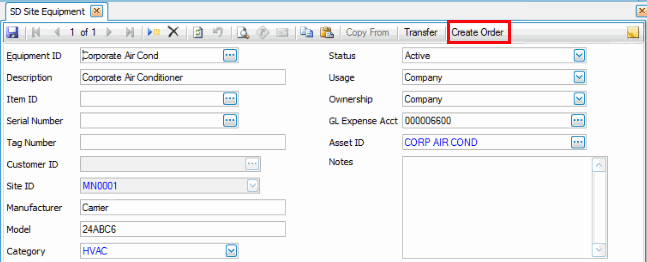
Customer Equipment
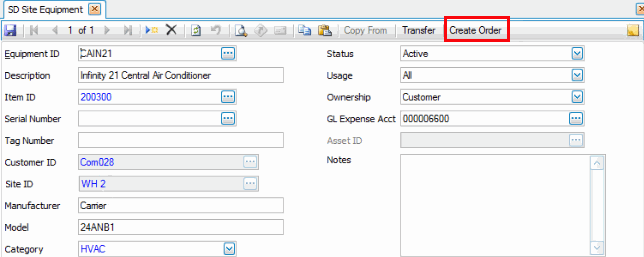
Company Equipment
Click on the Create Order button on the toolbar to create a new service order for the selected company equipment.
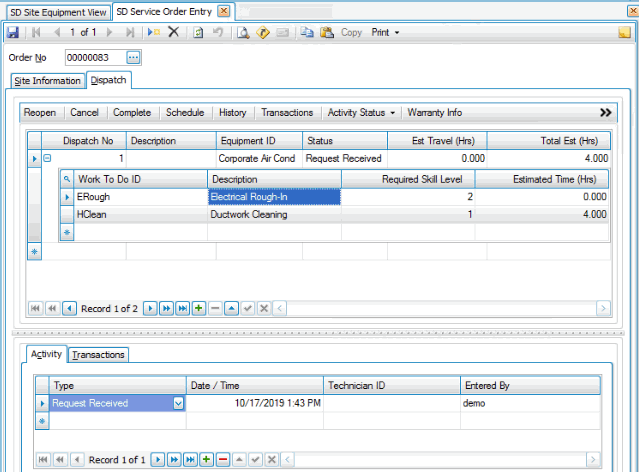
When you use the Create Order button, the Service Order Entry screen opens to the Dispatch tab, where you can select Work to Do IDs for the service order.
Use the command buttons on the toolbar:
| Select | To |
| Copy | Allows you to copy service order information from another service order. |
| Allows you to print the service order. |
Select the work to do for the service order, then click the Save button on the toolbar to save the order.
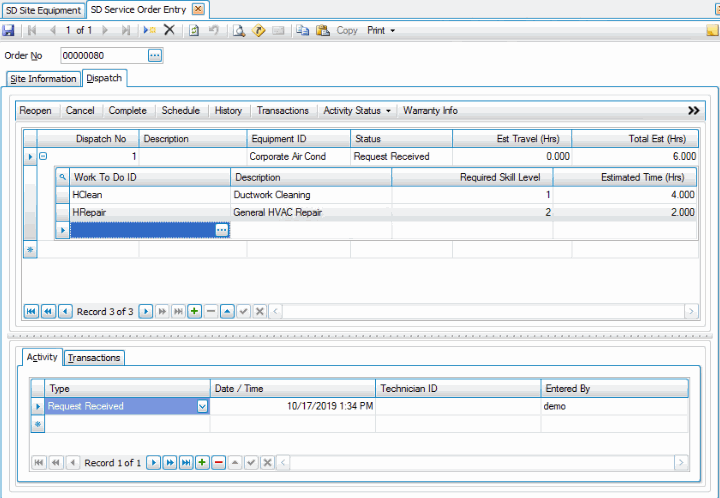
Proceed as you normally would with a service order.
If you select the Site Information tab, you will notice the Location information, including contact information, is filled in. The location information is taken from the Inventory location records.
Make changes as necessary. Any changes you make to the location information will only apply to the current service order; it will not change the master location record.
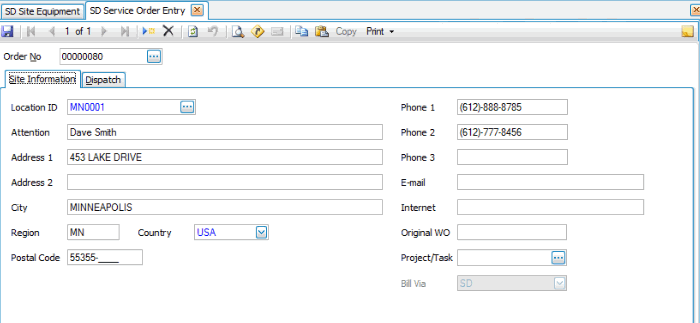
Click the Save button on the toolbar to save any changes to the service order.
Customer Equipment
Click on the Create Order button on the toolbar to create a new work order for the selected customer equipment.
When you use the Create Order button, you may see a notification dialog box:
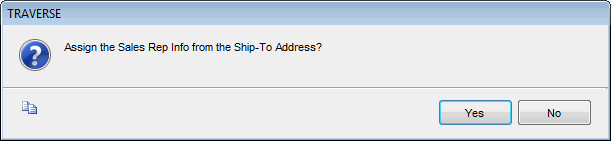
This dialog box allows you to utilize the sales rep information in the ship-to entity of Traverse for commission purposes. Choose Yes if you want to assign the Ship-To sales rep information to the work order; otherwise, select No.
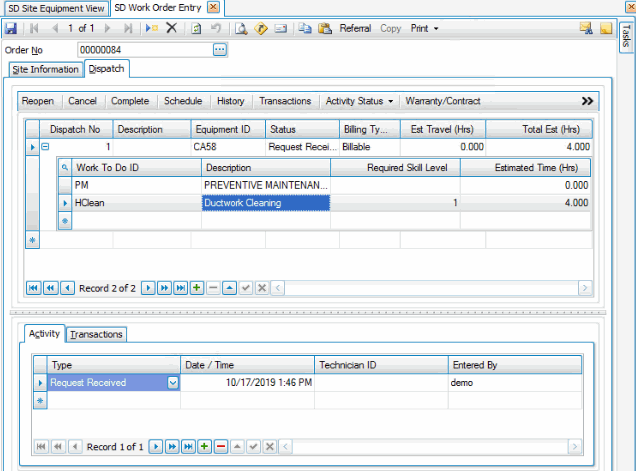
The Work Order Entry screen opens to the Dispatch tab, where you can select Work to Do IDs for the service order.
Use the command buttons on the toolbar:
| Select | To |
| Referral | Add a customer referral to this work order. |
| Copy | Allows you to copy work order information from another work order. |
| Gives you the option of printing the work order or the invoice associated with the current work order. |
Select the work to do for the work order, then click the Save button on the toolbar to save the order.
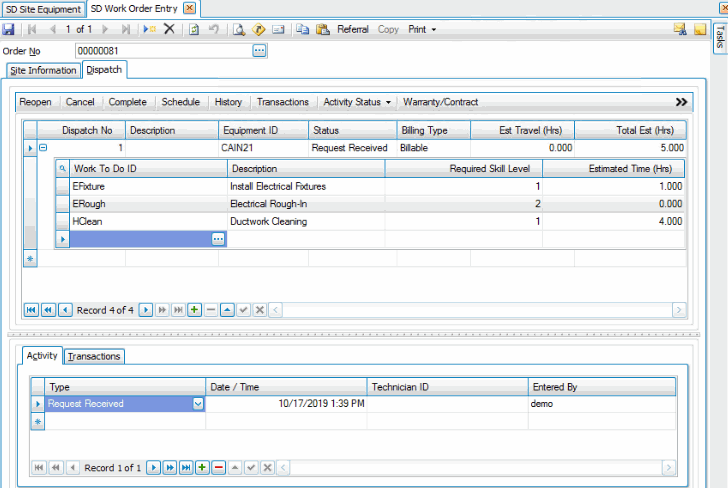
Proceed as you normally would with a work order.
If you select the Site Information tab, you will notice the Location information, including contact information, is filled in. The location information is taken from the customer’s Ship-To records.
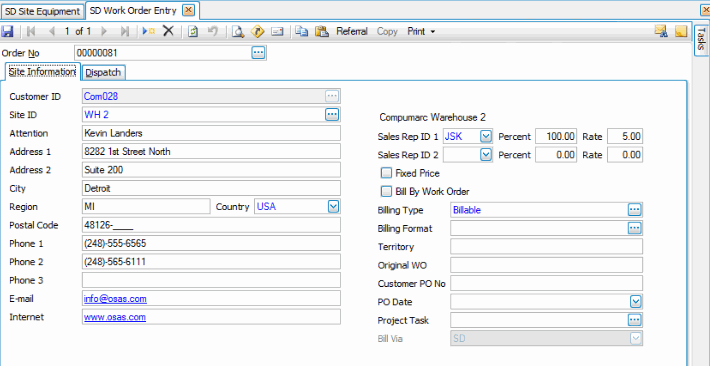
Make changes as necessary. Any changes you make to the location information will only apply to the current work order; it will not change the master location record.
If you change the Site ID, you may see a notification dialog box:
This dialog box allows you to utilize the sales rep information in the ship-to entity of Traverse for commission purposes. Choose Yes if you want to assign the Ship-To sales rep information to the work order; otherwise, select No.
Click the Save button on the toolbar to save any changes to the work order.
Auto-Create from Site Equipment View
In the Service Director | Interactive Views | Site Equipment View function, select criteria for the Data Filter (or leave the data filter blank to include all records) and then click the Apply Filter button to view a list of equipment for which you want to create a work order or service order.
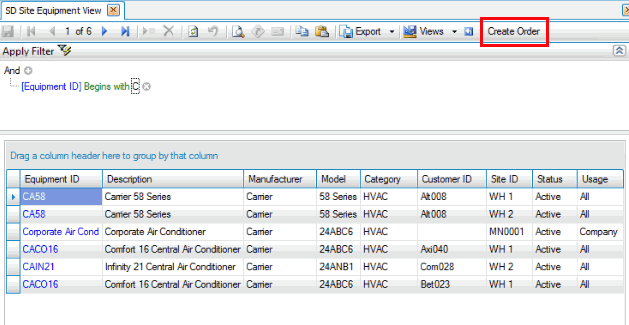
You can double-click on the Equipment ID link to open a read-only Site Equipment Information window for the selected equipment ID.
Select the Equipment ID for which you want to create a work order or service order. Click on the Create Order button on the toolbar to create a new order for the selected equipment.
When you use the Create Order button:
- If you selected company equipment, the Service Order Entry screen opens to the Dispatch tab, where you can select Work to Do IDs for the service order.
- If you selected customer equipment, the Work Order Entry screen opens to the Dispatch tab, where you can select the Work to Do IDs for the work order.
Click the Save button on the toolbar to save the order.
Proceed as you normally would with a service order or work order.